
Keyboard shortcuts
All keys at a glance, taken straight from the program so the list is always right.
この章はまだ日本語になっていません。このあとは英語で書かれています。
The shortcuts work as long as the workplane has the focus. While you type in a field they keep out of the way. On the Mac, Cmd applies wherever Ctrl is listed here.
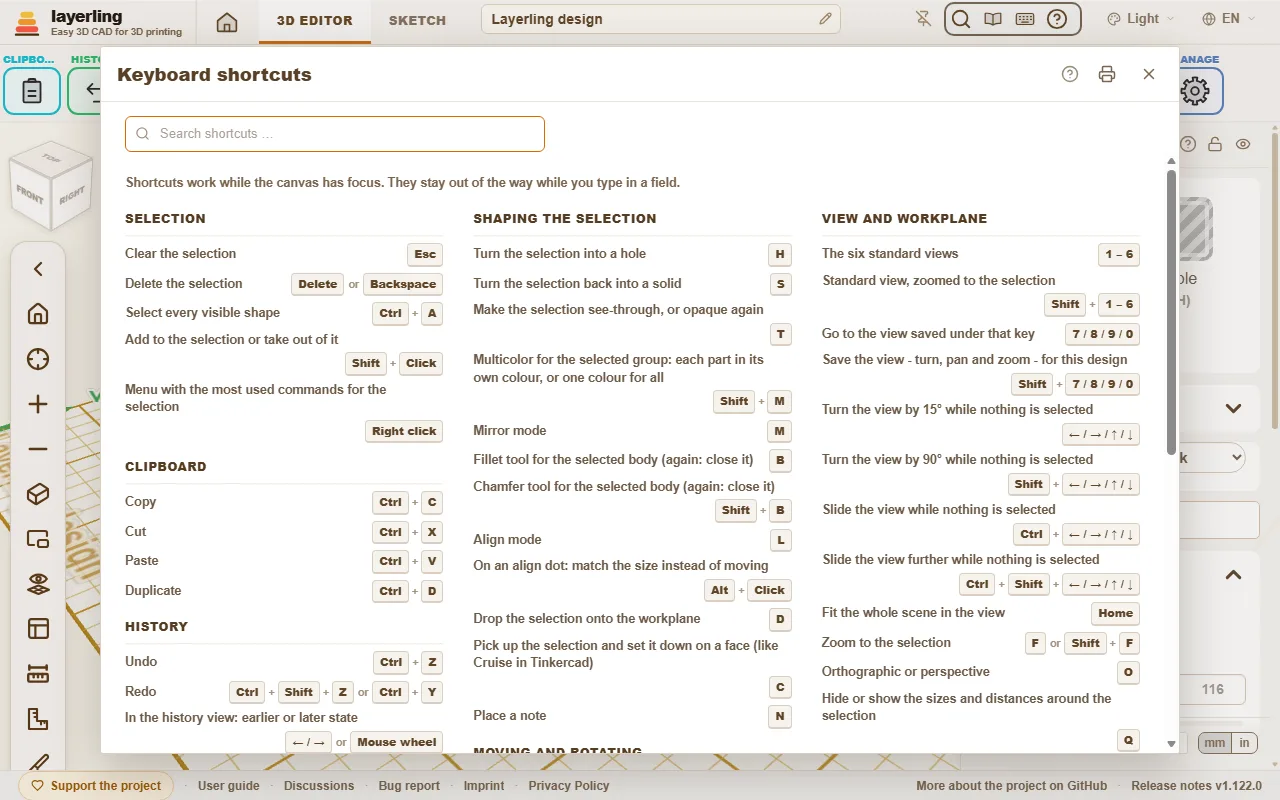
In the editor, 「キーボードショートカット」 in the 「ヘルプ」 area opens the same list as a window. The printer button in the window (「印刷またはPDFで保存」) prints the list on its own, black on white, the whole list on one side of an A4 or Letter sheet in three columns, to keep at hand as a quick reference; the print dialog of the browser also offers to save it as a PDF.
The box at the top of the window searches the list: it keeps only the shortcuts whose sentence, group or keys contain every word you type, so "fillet" or "ctrl+z" leaves just those rows. Capital letters and accents do not matter, and a single letter or digit finds that key and the words that start with it. The X at the end of the box empties it; with the box empty the whole list is back. The printer button prints what the window shows, so after a search it prints only the shortcuts found.
Command search
Can't find a tool? Press Ctrl+K or click the magnifying glass in the 「ヘルプ」 area, then type what you are looking for: a tool ("fillet", "mirror"), a shape ("cylinder") or a command ("export", "undo"). Move with the arrow keys and press Enter, or click the entry.
- The search understands the English and the German word alike and ignores capital letters and umlauts: "aushoehlen" finds 「中空にする」.
- Every entry shows the keys that do the same and the group of the ribbon it lives in, so you learn where it is.
- Entries that are greyed out cannot run right now, mostly because nothing is selected. They stay in the list so the search still tells you where the tool is.
The guide you are reading has a search box too, at the top of every page: type a word or two and it lists the sections that contain all of them, with the matching words marked. Click one, or press Enter for the first, to jump straight there. The page it opens marks every place your words appear and scrolls to the first one in that section; Esc or a click on a mark clears them.
- A shape's name adds that shape to the workplane, just like clicking it in the shapes menu.
- With an empty field the search lists the commands you used last at the top.
- The name of a body in your design finds that body and selects it, which helps in a design with many parts. Bodies only appear once you type.
- It works in sketch mode as well, with the sketch tools.
Your own keys
Any command of the command search can go on a key of your own: a tool you use all the time, a shape, 「作業平面の中央に置く」 or 「Open the shapes panel」.
- Open 「キーボードショートカット」 and click 「Add a key」 under 「Your own keys」 at the top of the window.
- Type a few letters of the command and click it, or press Enter for the first one.
- Press the key you want, alone or with Ctrl, Alt or Shift. Letters, digits and F1 to F12 can take a command.
A key the editor already uses, one the browser keeps for itself (such as Ctrl+W) or one of your own keys is refused, and the window says what it does. Click a key in the list to change it, the X next to it to remove it, or 「Remove all my keys」 to start over.
- The key runs the command just as the command search does. If it cannot run right now, mostly because nothing is selected, the status bar says so.
- Your keys show next to their commands in the command search and on the printed list.
- They stay in this browser, like the theme. A key for a sketch tool works in sketch mode, a key for the 3D editor outside it.
- While you type in a field, your keys keep out of the way like all the others.
Interactive Help
Cannot find where to read about a button or a field? Let the program take you there. Click the question mark in the 「ヘルプ」 area, or press Shift+F1. The pointer turns into a question mark, and whatever lies under it is outlined.
- Click a button, a field, a switch, a handle, a group of the ribbon or the title bar of a window. It does not do what it normally does. A small window opens instead, with the name of the element, a short summary of the part of this guide that is about it, up to two more places that mention it, and 「ガイドで開く」.
- The help is about the element you pointed at, not about the whole window around it. An element without a name of its own uses the nearest one around it; inside a window it falls back on that window's question mark.
- 「ガイドで開く」 opens the guide at that section in a new tab. There the section is outlined in colour, from its heading to its end, so you see where it starts and stops.
- If the guide says nothing about the element, the window says so and offers 「ガイドを検索」.
- Esc, or the question mark again, leaves the mode. On a touch screen there is no hover: a tap on an element opens the window straight away.
The window moves by its title bar like the other windows. The program finds the section by the name of the element - the label on a button, the name of a field - because this guide writes every button as it is called in the program. It looks it up in the same search as the box at the top of each guide page, in the language you are using, and runs entirely in your browser.
選択
| Esc | 選択を解除 |
| Delete または Backspace | 選択を削除 |
| Ctrl+A | 表示中のすべてのシェイプを選択 |
| Shift+クリック | 選択に追加、またはのぞく |
| 右クリック | 選択でよく使うコマンドのメニュー |
クリップボード
| Ctrl+C | コピー |
| Ctrl+X | 切り取り |
| Ctrl+V | 貼り付け |
| Ctrl+D | 複製 |
履歴
| Ctrl+Z | 元に戻す |
| Ctrl+Shift+Z または Ctrl+Y | やり直す |
| ← / → または Wheel | 履歴表示で: 前または後の状態 |
| PgUp / PgDn | 履歴ビューで:10 段階前または後の状態 |
| Home / End | 履歴ビューで:最も古い状態または現在の状態 |
| Esc | 履歴表示で: 現在の状態に戻る |
ファイル
| Ctrl+I | 読み込みダイアログを開く、または閉じる |
| Ctrl+E | エクスポートダイアログを開く、または閉じる |
| Ctrl+S | デザインをそのファイルに保存 |
グループ化と表示
| Ctrl+G | グループ化 |
| Ctrl+B | バンドル(結合せずにまとめる) |
| Ctrl+Shift+G | グループ解除またはバンドル解除 |
| E | 選択したグループを編集 |
| Ctrl+L | 選択をロックまたはロック解除 |
| Ctrl+Shift+L | Lock or unlock the shape only: the part still moves, turns and groups |
| Ctrl+H | 選択を非表示 |
| Ctrl+Shift+H | 非表示のものをすべて表示 |
| Shift+N | メモと点の表示/非表示 |
| Ctrl+Shift+O | オブジェクトリストの表示・非表示 |
選択したものの加工
| H | 選択を穴にする |
| S | 選択をソリッドに戻す |
| T | 選択を透明にする、または不透明に戻す |
| Shift+M | 選んだグループをマルチカラーに: パーツごとに別の色、または全体で1色 |
| M | ミラーモード |
| B | 選択したボディのフィレットツール(もう一度: 閉じる) |
| Shift+B | 選択したボディの面取りツール(もう一度: 閉じる) |
| L | 整列モード |
| Alt+クリック | 整列の点の上で:移動せずにサイズを揃える |
| Alt+クリック | 等間隔の点の上で:間隔を入力 |
| D | 選択を作業平面に落とす |
| C | 選択を持ち上げて面の上に置く(TinkercadのCruiseと同様) |
| N | メモを置く |
移動と回転
| ← / → / ↑ / ↓ | ビューの向きに合わせて1グリッド刻み移動 |
| Shift+← / → / ↑ / ↓ | 5グリッド刻み移動 |
| Alt+← / → / ↑ / ↓ | グリッド刻みの5分の1だけ移動 |
| Ctrl+↑ / ↓ | 選択を上げる・下げる |
| R | 45°回転 |
| Shift+R | 22.5°回転 |
| Shift | ドラッグ中に押したまま: XまたはY方向だけに移動 |
| Alt+ドラッグ | コピーをドラッグし、元はそのまま残す |
| Alt | ドラッグ中に1回押す: 他のシェイプへのスナップを一時停止 |
| Alt+Enter | シェイプのそばでサイズを入力するとき: 反対側のエッジからではなく、真ん中を中心に大きくする |
ビューと作業平面
| 1 – 6 | 6つの標準ビュー |
| Shift+1 – 6 | 標準ビューで選択にズーム |
| 7 / 8 / 9 / 0 | そのキーに保存したビューへ移動 |
| Shift+7 / 8 / 9 / 0 | このデザインのビュー(回転・パン・ズーム)を保存 |
| ← / → / ↑ / ↓ | 何も選択していないときビューを15°回転 |
| Shift+← / → / ↑ / ↓ | 何も選択していないときビューを90°回転 |
| Ctrl+← / → / ↑ / ↓ | 何も選択していないときにビューをスライド |
| Ctrl+Shift+← / → / ↑ / ↓ | 何も選択していないときにビューを大きくスライド |
| Home | シーン全体を画面に収める |
| F または Shift+F | 選択にズーム |
| O | 平行投影または透視投影 |
| Q | 選択範囲の周りの寸法と距離を表示/非表示 |
| + または − | ズームインまたはズームアウト |
| Alt+1 – 0 | スナップグリッドを選ぶ:メニューのその番号の項目 |
| , または . | スナップグリッドを一段細かく/粗く |
| 中クリック | ポインターの位置でスナップグリッドメニュー |
| W | 作業平面を置く |
| Shift+W | 選択した面に置く |
| Alt+W | ベースプレートに戻す |
| P | 作業平面を正面から見る |
| Shift | 置くときに押したまま: 向きを反転 |
| Esc | 作業平面またはメジャーモードを終了 |
ヘルプ
| Ctrl+K | コマンド検索を開く |
| Shift+F1 | インタラクティブヘルプのオンとオフ |
スケッチモード
| Ctrl+K | コマンド検索を開く |
| Shift+F1 | インタラクティブヘルプのオンとオフ |
| Esc | ツールを置く(選択に戻る)、次に選択を解除 |
| Delete または Backspace | 選択した要素を削除 |
| Ctrl+C | コピー |
| Ctrl+X | 切り取り |
| Ctrl+V | 貼り付け |
| Ctrl+D | 複製 |
| Ctrl+Z | 元に戻す |
| Ctrl+Shift+Z または Ctrl+Y | やり直す |
| Ctrl+A | すべての点と線を選択 |
| R | 閉じたスケッチを45°回転 |
| Ctrl+L | 選択した輪郭または参照画像をロックまたはロック解除 |
| N | メモを置く |
| Shift+N | メモと点の表示/非表示 |
| Ctrl+← / → / ↑ / ↓ | 何も選択していないときにビューをスライド |
| Ctrl+Shift+← / → / ↑ / ↓ | 何も選択していないときにビューを大きくスライド |
| Home | スケッチ全体を画面に収める |
| F または Shift+F | スケッチ内の選択にズーム |
| + または − | スケッチをズームインまたはズームアウト |
| Alt+1 – 0 | スナップグリッドを選ぶ:メニューのその番号の項目 |
| , または . | スナップグリッドを一段細かく/粗く |
| 中クリック | ポインターの位置でスナップグリッドメニュー |
| Alt+Enter | 線の長さ入力欄で: 両側に伸ばす |
| ← / → / ↑ / ↓ または Shift+← / → / ↑ / ↓ | 選択した点、線、画像を1グリッド刻み移動(Shift: 大きく移動) |
| ← / → / ↑ / ↓ または Shift+← / → / ↑ / ↓ | クリックした曲線のハンドルを1グリッド刻み動かす(Shift: 大きく動かす) |
| 1 または 2 または 3 または 4 または 5 | 描画ツールを選ぶ: 1 直線、2 ベジェ曲線、3 スムーズ曲線、4 点を追加または削除、5 フリーハンド(線を描いていないとき) |
| Shift | 描画中: 新しい線を15°刻みにスナップ |
| Shift | ドラッグ中: 移動を1軸に固定 |
| 0-9 または < または Tab または Enter | 描画中: 長さを入力し、「<」またはTabで角度、Enterで点を確定 |
面取りとフィレット
| Enter | プレビューを反映 |
| Esc | プレビューを取り消す |